CANVAS INSTRUCTOR GUIDE

CREATE AN ONLINE ASSIGNMENT
As an instructor, you can create an online assignment for students to submit their work through Canvas. Students can submit audio or video recordings by uploading existing media or recording new media.
Note: Files submitted to an online assignment do not count against a student's Canvas File Quota.

Step 1
Open Assignments
In Course Navigation, click the Assignments link.
Step 2
Add Assignment
To create a new assignment, click the Add Assignment button.


Step 4
Select Online Submission Type
In the Submission Type drop-down menu, select the Online option.


Step 5
Select Online Entry Options
Select the online entry options you want to allow for the assignment. You can select up to four options.
Text Entry [1]: Students can submit the assignment directly in the Rich Content Editor. DocViewer annotations are not available for text entry submissions. Additionally, text entry submissions cannot be re-uploaded to the Gradebook.
Website URL [2]: Students can submit a website URL. DocViewer annotations are not available for website URL submissions. Additionally, website URL submissions cannot be re-uploaded to the Gradebook.
Media Recordings [3]: Students can submit an audio or video recording. They can either record new media or upload existing media. Canvas supports media uploads up to 500 MB. DocViewer annotations are not available for media recording submissions. Additionally, media recording submissions cannot be re-uploaded to the Gradebook.
Student Annotation [4]: Students can annotate a file uploaded by an instructor. The annotated document is submitted as the student's assignment submission. Canvas recommends using another online entry file type for students who may not be able to annotate a document.
File Uploads [5]: Students can upload a file or take a photo with their webcam. Also, if your institution has enabled Google Docs, the Google Apps LTI, or the Microsoft Office 365 LTI, then students can upload files from either their Google Drive or OneDrive account directly. (If your institution has enabled only Google Docs, then students must connect to Google Drive as a web service in Canvas to submit an assignment.) Canvas supports file uploads up to 5 GB.
DocViewer annotations are available for supported file types in SpeedGrader. Additionally, file upload submissions can be downloaded and then re-uploaded to the Gradebook.
Assignment settings are persistent to remember and display the settings created or edited in the previous assignment in the course. Based on prior assignments, one or more of these options might be already selected for you.
Note: Even if you select multiple submission types for an assignment, students will only be able to use one submission type per assignment submission.
Step 6
Select Annotation File
If you allow student annotation submissions, then you must select or upload a file for students to annotate.
You can select a file from course files [1] or your user files [2], or you can upload a new file from your computer [3].
Files used for annotation must be able to be previewed in Canvas.


Step 7
Restrict File Types
If you allow file uploads, then you can choose to restrict submissions to specific file types. To enable this option, click the Restrict Upload File Types checkbox [1]. In the Allowed File Extensions field [2], enter a list of accepted extensions. All file types need to be separated by a comma. You can include spaces, caps, and periods in assignment file names.
Note: In the case of an odd or unusual file type, try adding it to your course to confirm it is accepted before requesting students to submit it. Canvas does not support compound file types.
Step 8
Save Assignment
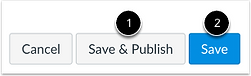
To save and publish the assignment, click the Save & Publish button [1]. To save the assignment as a draft, click the Save button [2].
>> Information and images on this page are courtesy of Instructure (2023). For the corresponding reference to this citation, visit the References page.